Give updates a place to live
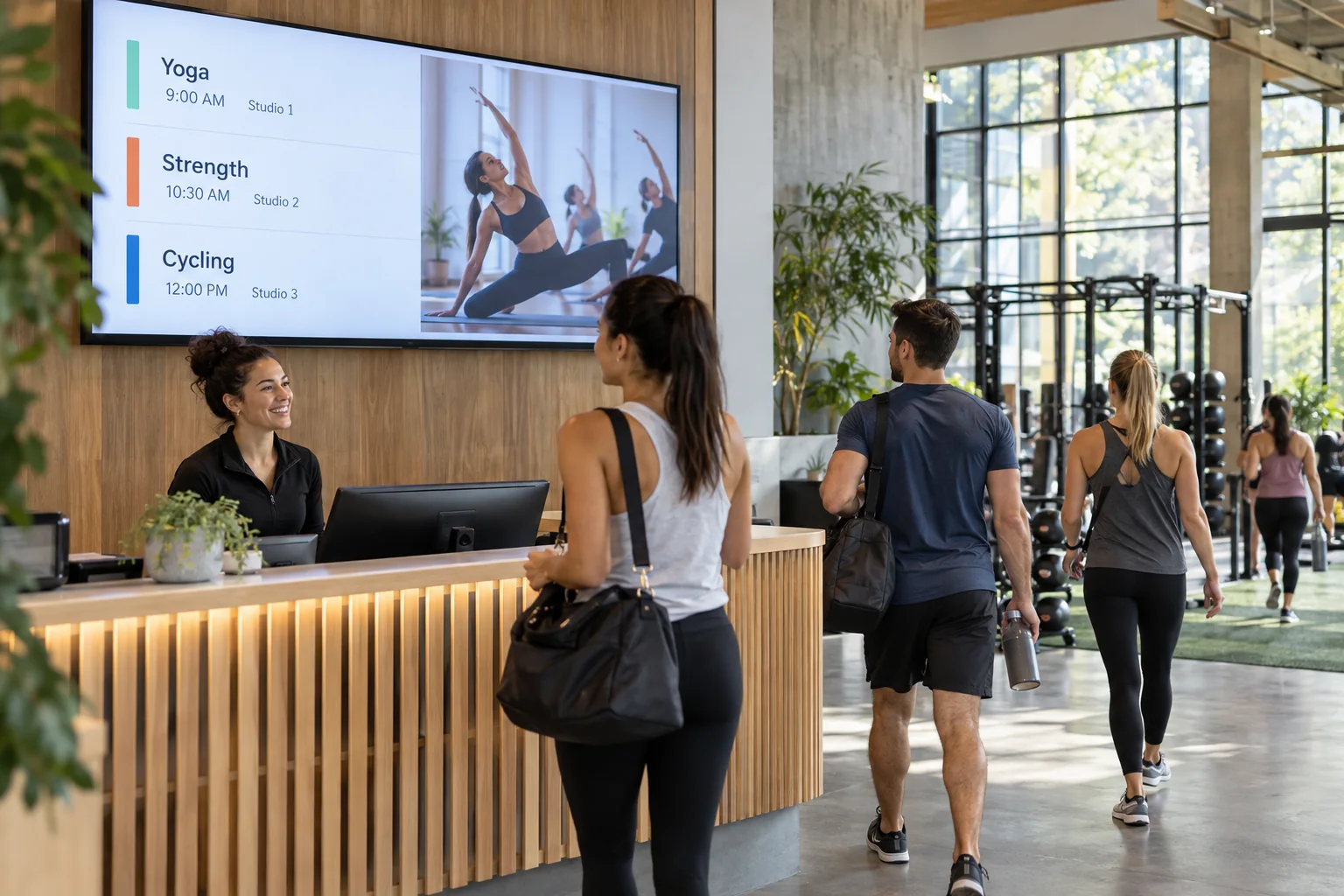
Show office hours, building notices, upcoming meetings, or a reminder about the next team lunch. Keep it short enough to read on the way past.
Not every update needs another email. Put announcements, team moments, and useful reminders on the screens people pass on their way to a meeting or a cup of coffee.
Your photos. Your message. Your screens.

Start with what your visitors already want to know. Then add a little personality.
Show office hours, building notices, upcoming meetings, or a reminder about the next team lunch. Keep it short enough to read on the way past.
Welcome a new teammate, share photos from an event, or recognize a job well done. Small moments can make a common area feel more like your team’s space.
Introduce your company, show a short overview video, or display a welcome slide for an event. Give visitors something useful to see while they wait.
Welcome to the team • Coming up this week • A moment worth sharing
Just one idea. Build a look that feels like you.
Reception, the break room, and another office can each have their own message. Build a design that uses your colors, add the announcements that belong in each space, and publish updates from your account. No need to squeeze everything onto the same slide.
See what the software can doThe Online Design Studio is included in every plan. You can keep it simple and add more as you go.
Have something specific in mind? Tell us about it.
Ask us a questionYes. Add your announcements as text, images, or videos and update them in the Design Studio. These examples do not require a spreadsheet or API integration.
No. Start with a ready-to-use template and change the text and pictures. If you would rather have someone create the design for you, ask about our menu design service.
You need a compatible TV or display setup running the Interactive Menus app, plus an account. Visit the app page to check the available platforms, or contact us before choosing a player. See the apps →
One screen or several locations. Start with what you need today.